2.2 Running Command as Root
Make sure you are logged into your machine! You will practice changing users and becoming root.
We are going to check the charachteristics of our current user we do this with the command id
id
The output should look similiar to this:
[spaceship@rhcsa ~]$ id
uid=1001(spaceship) gid=1001(spaceship) groups=1001(spaceship),10(wheel) context=unconfined_u:unconfined_r:unconfined_t:s0-s0:c0.c1023
We can see that we are logged in as spaceship the UID (user id) and the GID (group id) as numbers and perhaps even additional groups.
We can also check variables of the specific home directory.
echo $HOME
This command shows the path to the users home directory.
Output would look like this:
[spaceship@rhcsa ~]$ echo $HOME
/home/spaceship
And where our environment searches for executable files just like path of windows.
echo $PATH
Output example:
[spaceship@rhcsa ~]$ echo $PATH
/usr/local/bin:/bin:/usr/bin:/usr/local/sbin:/usr/sbin:/home/spaceship/.local/bin:/home/spaceship/bin
Let’s switch to root with the su (switch user) command.
su
If you want to go to the home directory of the user you are switching to add the - to the command.
su -
Fill in the root password this should be “spaceship” on all machines. You should now be logged in as root
[root@rhcsa ~]#
Check the environment variables again.
id
echo $HOME
echo $PATH
Notice the diffrences on uid/gid the home directory and path settings.
Let’s return to the previous user you were logged into by typing the exit command.
exit
[spaceship@rhcsa ~]$
Notice that the end of the bash line changed from $ to # and back again.
$ means you are logged in as a user
# means you are logged in as root
Let’s attempt to run a tail command on the /var/log/messages file to see the end of the file, and lets use -5 to only display the last 5 lines of this file.
tail -5 /var/log/messages
The result should be similiar to this:
[spaceship@rhcsa ~]$ tail -5 /var/log/messages
tail: cannot open ‘/var/log/messages’ for reading: Permission denied
Let’s try now with the sudo command.
sudo tail -5 /var/log/messages
Now you should see the lines!!
Let’s copy a file.
cp /etc/rootfile /etc/rootfileOLD
You should be getting an error like this:
[spaceship@rhcsa~]$ cp /etc/rootfile /etc/rootfileOLD
cp: cannot create regular file '/etc/rootfileOLD': Permission denied
With the sudo command we can copy the file!
sudo cp /etc/rootfile /etc/rootfileOLD
Now to remove the file
rm /etc/rootfileOLD
You should be getting an error like this:
[spaceship@rhcsa~]$ rm /etc/rootfileOLD
rm: remove write-protected regular empty file '/etc/rootfileOLD'? y
rm: cannot remove '/etc/rootfileOLD': Permission denied
Of course we can use sudo again to remove the file:
sudo rm /etc/rootfileOLD
Let’s edit a configuration file in /etc/
echo "Welcome to Class" | tee -a /etc/rootfile
The permission error should be shown again:
[spaceship@rhcsa~]$ echo "Welcome to Class" >> /etc/rootfile
-bash: /etc/rootfile: Permission denied
With sudo we can again get things done.
echo "Welcome to Class" | sudo tee -a /etc/rootfile
Check if the text was added to the file.
[spaceship@rhcsa~]$ sudo vim /etc/rootfile
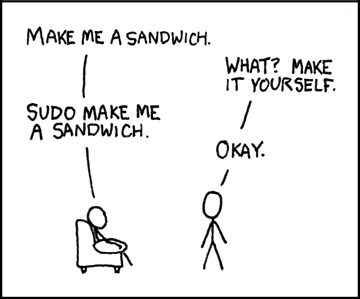
The sudo commando is used to execute commandos as if you were the root user, but it does not require you to be the root user. This is called priviledge escalation.