2.3 Checking Filesystems
We will play around with several methods of checking information of the file system.
become root
The filesystem hierchy
[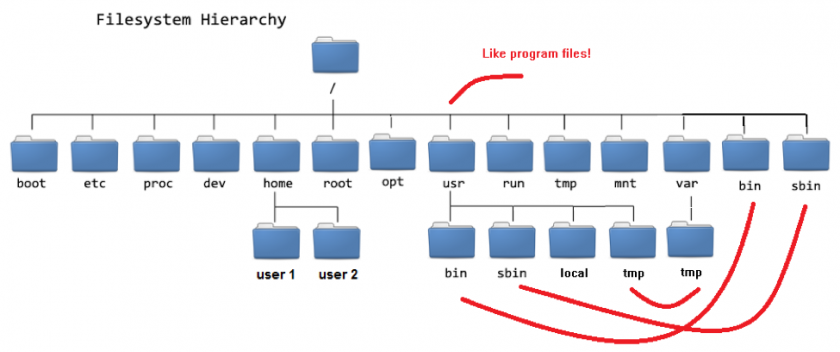
As you can see the first / is a location on it’s own it’s the location of what people call the root. And so this is the root of the file system. Every other location is based from this root location. For the more visualy inclined here a picture of the Centos8 root file system.
The arrows are softlinks more on that later.
I added a list of all locations and their descriptions:
location |
description |
|---|---|
/ |
root directory |
/bin |
executable files |
/sbin |
executable files but only for sudo and root |
/boot |
the files for the boot process |
/dev |
device files and drivers |
/etc |
configuration files |
/home |
local users home directory |
/lib /lib64 |
libraries that are shared with /bin, /sbin and /boot |
/media /mnt |
directory for mounted devices |
/opt |
optional packages bought from red hat |
/proc |
kernel information |
/root |
home directory of root |
/run |
runtime data for process started at boot and is regenerated every boot |
/srv |
NFS http and ftp information |
/sys |
used to interface different hardware managed from kernel |
/tmp |
temporarily files removed during boot |
/usr |
directory that contains subdir with programs and documentation some of them mimicked from / |
/var |
variable files that change in size like log |
You can use the manual pages to read information on the hiearchy and usages:
man hier
lsblk
To see how the file system is mounted and view the situation with disks we can use the lsblk command it’ short for List Block Devices since harddisks and partitions are classified as block devices.
lsblk
Result should look like this:
[root@rhcsa ~]# lsblk
NAME        MAJ:MIN RM  SIZE RO TYPE MOUNTPOINT
sda           8:0    0    9G  0 disk
|-sda1        8:1    0    1G  0 part /boot
`-sda2        8:2    0    8G  0 part
  |-cl-root 253:0    0  6.1G  0 lvm  /
  |-cl-swap 253:1    0  924M  0 lvm  [SWAP]
  `-cl-home 253:2    0    1G  0 lvm  /home
sdb           8:16   0   10G  0 disk
sdc           8:32   0    5G  0 disk
sr0          11:0    1 1024M  0 rom
sr1          11:1    1  376K  0 rom
A visual aid to understand the result of an lsblk command.

df
The next command is df this command is used to see file system disk space usage, see man df for more information.
df
Result should look like this:
[root@rhcsa ~]# df
Filesystem          1K-blocks    Used Available Use% Mounted on
devtmpfs               370516       0    370516   0% /dev
tmpfs                  386108       0    386108   0% /dev/shm
tmpfs                  386108    5708    380400   2% /run
tmpfs                  386108       0    386108   0% /sys/fs/cgroup
/dev/mapper/cl-root   6379520 4138416   2241104  65% /
/dev/mapper/cl-home   1038336   49088    989248   5% /home
/dev/sda1              999320  135268    795240  15% /boot
That seems like a lot of information lucky us df comes with an ``-h``` switch or flag this makes the output human readable.
df -h
[root@rhcsa ~]# df -h
Filesystem           Size  Used Avail Use% Mounted on
devtmpfs             362M     0  362M   0% /dev
tmpfs                378M     0  378M   0% /dev/shm
tmpfs                378M  5.6M  372M   2% /run
tmpfs                378M     0  378M   0% /sys/fs/cgroup
/dev/mapper/cl-root  6.1G  4.0G  2.2G  65% /
/dev/mapper/cl-home 1014M   48M  967M   5% /home
/dev/sda1            976M  133M  777M  15% /boot
Now it shows the result in Mega and Gigabytes, much easier to read and to see how and if the filesystem is filling up.
du
The last command is du this is used to check disk usage, it comes with the same -h switch as df.
du -h
This should get you a similiar result as this:
[root@rhcsa ~]# du -h
4.0K	./.cache/dconf
4.0K	./.cache
4.0K	./.dbus/session-bus
4.0K	./.dbus
0	./.config/ibus/bus
0	./.config/ibus
32K	./.config/pulse
32K	./.config
8.0K	./.ssh
0	./.ansible/tmp
0	./.ansible
76K	./labcheck
172K	.
As you can see it checked the size of every directory and directory in those directories etc etc. And show the total sum of directorie sizes.